You have English videos. You want them on RedNote. The gap between those two things is Chinese subtitles, and burning them onto your video without hiring a translator or learning a new language.
That's what Create In Chinese does. This walkthrough shows you every screen from upload to download so you know exactly what you're getting before you try it.
But first, a quick backstory on why this exists.
Why we built it
We saw how well Western creators were received on RedNote during the TikTok ban. Creators like me got essentially free reach by reposting videos from TikTok and Instagram without doing anything extra. There was clearly an opportunity.
Then we noticed a massive gap between creators who just reposted and creators who actually translated their content. People like Jeff Su and Ali Abdaal who spent time translating videos, adding Chinese cover images, and redesigning their profiles for Chinese-speaking audiences grew significantly faster. That difference is worth understanding if you're considering RedNote seriously.
The third thing we saw: huge Western creators with zero RedNote presence — Dan Koe, Cody Sanchez, Alex Hormozi — were already getting crazy reach on the platform. Not from their own accounts. Unknown profiles were translating their content into Chinese and posting it, and those reposts were blowing up. That tells you everything about the appetite for English-language content on RedNote.
So the opportunity was obvious. The problem was execution.
My wife is from Qingdao, China, and she'd always wanted to help with the business. We knew bilingual subtitles would be valuable — great for Chinese speakers who want to follow along in English, almost like an English learning tool with both languages on screen at once. But I wasn't going to ask her to manually translate every video I've ever made. The time and cost didn't make sense, so we never did it.
Until I realized we could build a tool that does it. One upload, and you get everything you need to post on RedNote. That was the whole design.
Before you upload
One quick tip: upload videos that don't already have English subtitles burned in. Your original footage without captions works best. Create In Chinese generates its own timed subtitles, so existing text on screen will overlap and look messy.
Create In Chinese works on both mobile web and desktop. I'd recommend using desktop, especially since you'll want to post to RedNote from the desktop app anyway. If you haven't set that up yet, this guide walks through every step.
Step 1: Upload your content
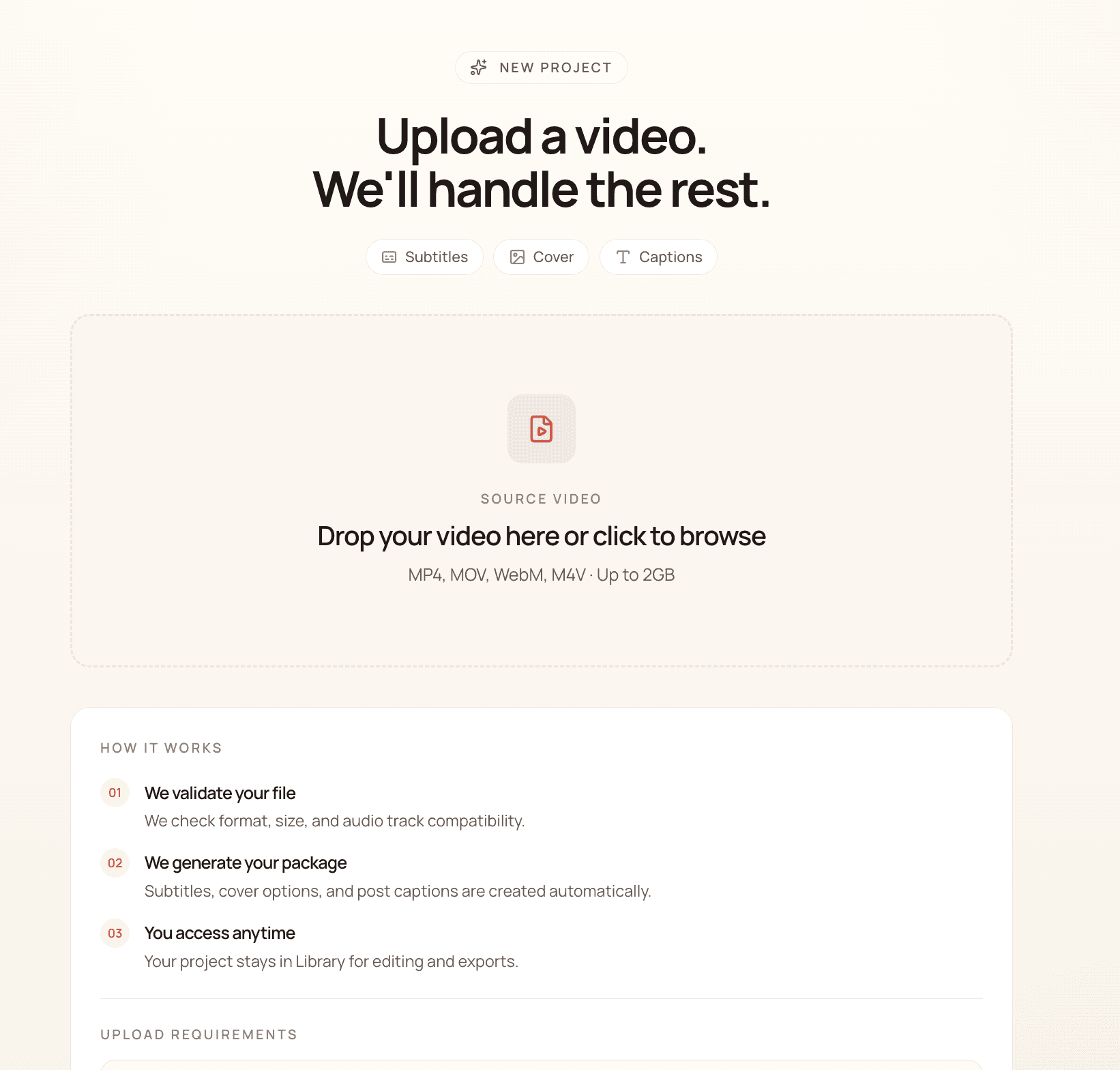
Go to createinchinese.com and you'll land on the upload screen. Drag your video file in or click to browse. Create In Chinese accepts MP4, MOV, WebM, and M4V files up to 2GB.
Once you drop the file, the upload starts immediately and you'll see a progress bar along with a pipeline tracker on the right showing each step: Upload & queue, English transcription, Chinese subtitles & captions, and Generate video & covers.
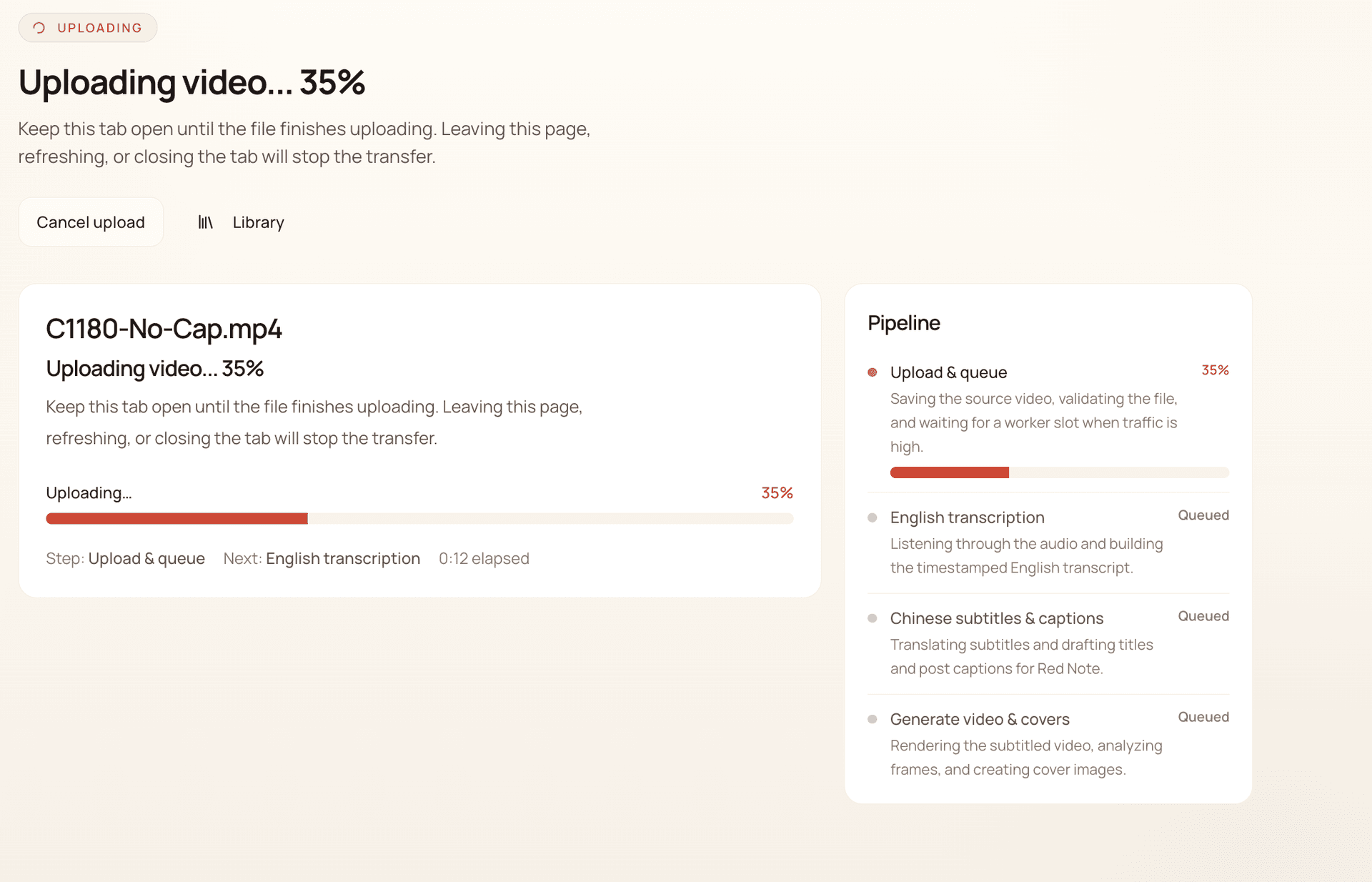
Important: keep the tab open until the upload finishes. Leaving the page, refreshing, or closing the tab will stop the transfer. Once the upload completes, the processing runs on Create In Chinese's servers and you'll get your finished package back in a few minutes.
Step 2: Review your package
When processing finishes, your video shows up in the Library with a "Ready" status. Each project gets a cover image with Chinese text generated automatically.
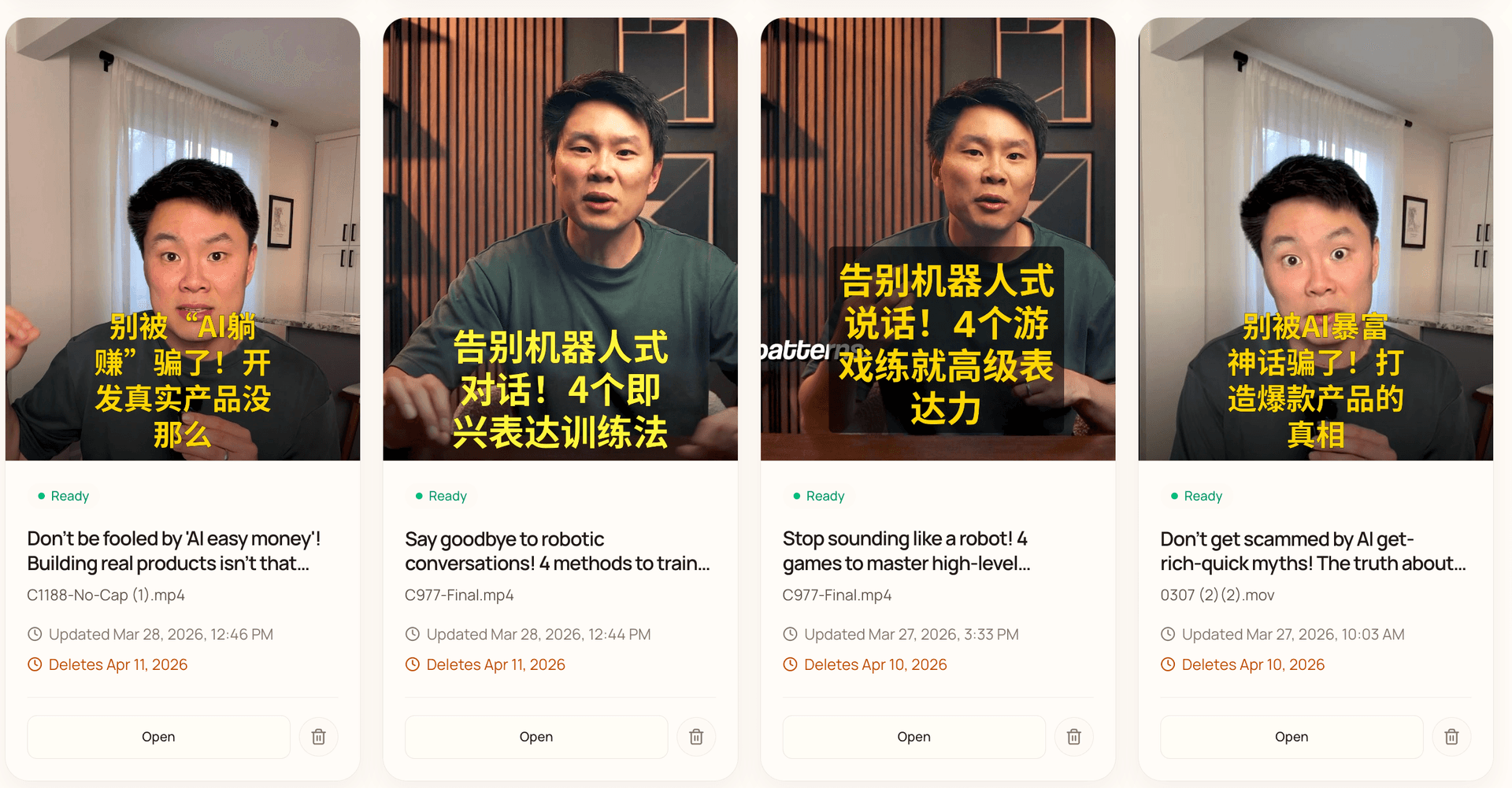
Click "Open" on any project and you land on the review page. The whole review has three parts: subtitled video, cover image, and caption. All of it should take less than 5 minutes.
Part 1: Subtitled video and headline
The top of the review page shows two things side by side: your subtitled video on the left, and the selected cover image on the right. Create In Chinese generates multiple headline options for your video, each with a Chinese title and English translation. Pick the one that fits best.
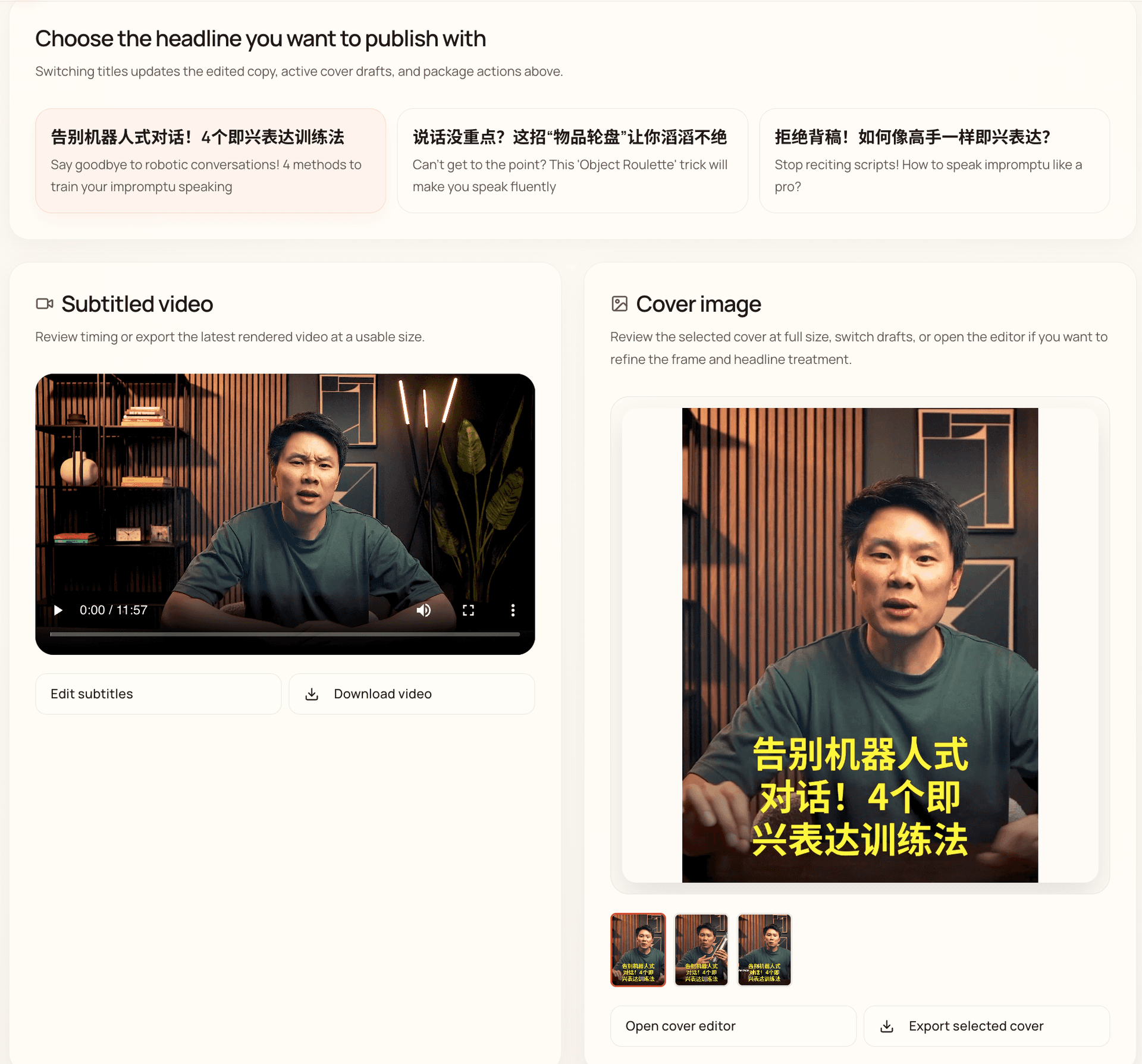
Below that, you can edit the selected headline and the post caption. The caption comes in both Chinese and English, ready to copy and paste into RedNote.
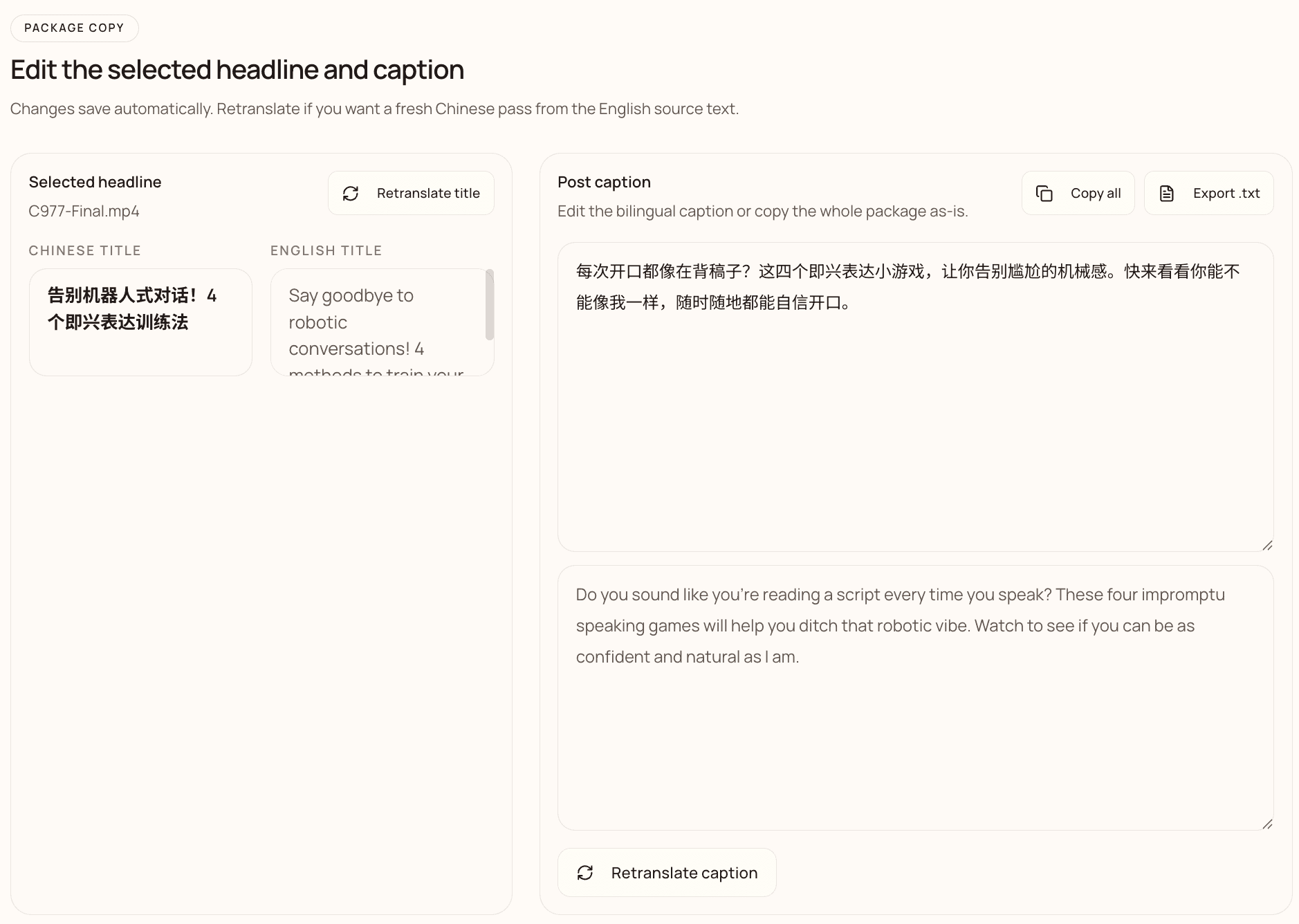
You can download the subtitled video directly from this screen. Hit "Edit subtitles" if you want to fine-tune anything.
Part 2: Video captions
The subtitle editor shows every line of your video with timestamps, English text on the left and Chinese translation on the right. A live preview on the right lets you scrub through the video and see exactly how the subtitles look on screen.
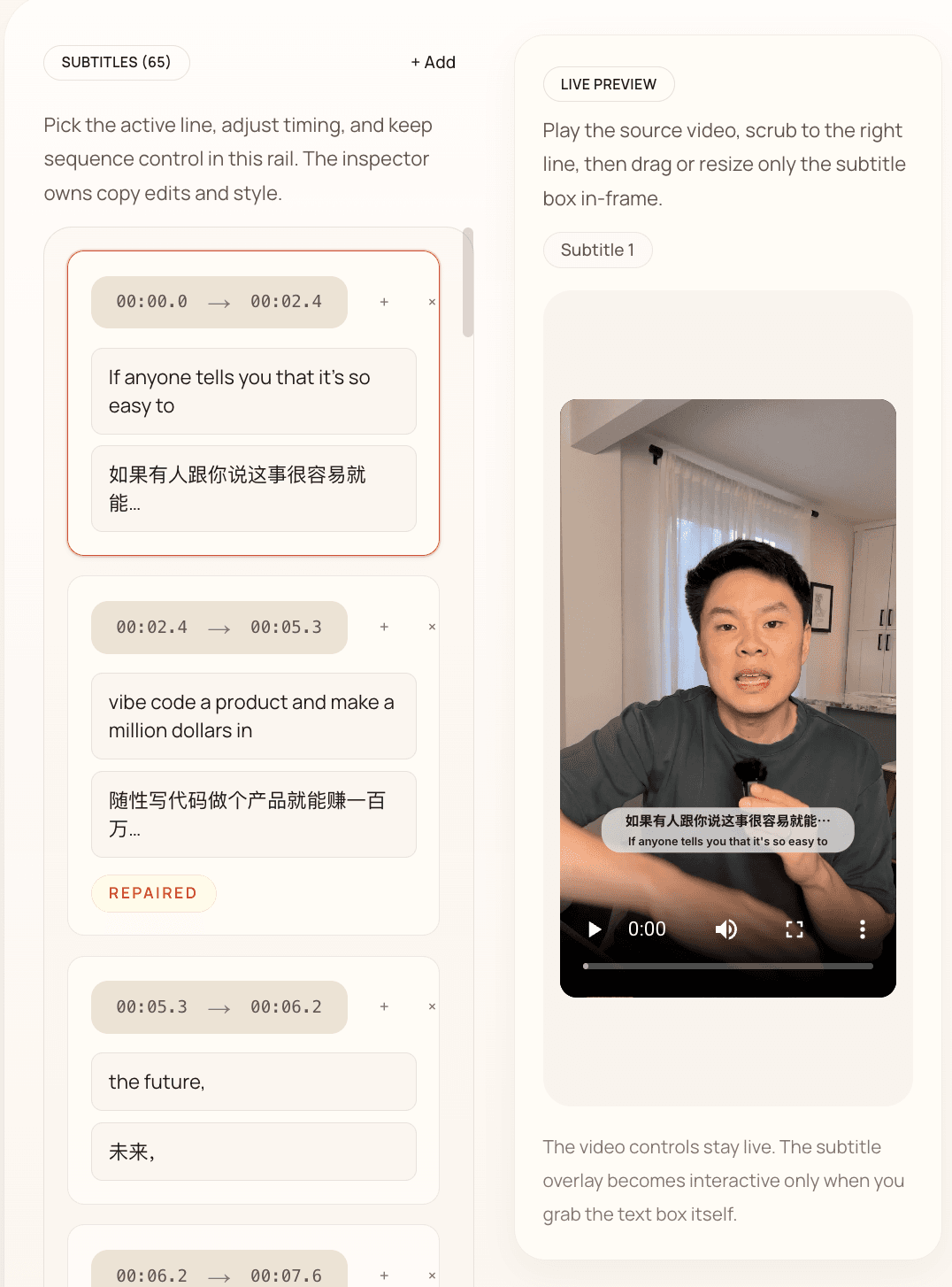
Our transcription is generally about 98% accurate, so you don't need to stress over this step. But if something looks off, you can fix the English text and retranslate just that line into Chinese. The timestamps are already set, so you're only changing words, not timing.
For most videos, I spend maybe 30 seconds scanning through the English to catch any obvious errors. If your audio was clean, you'll barely need to touch anything here.
Part 3: Cover image
The cover image editor is where you'll probably spend the most time, and it's still only a minute or two.
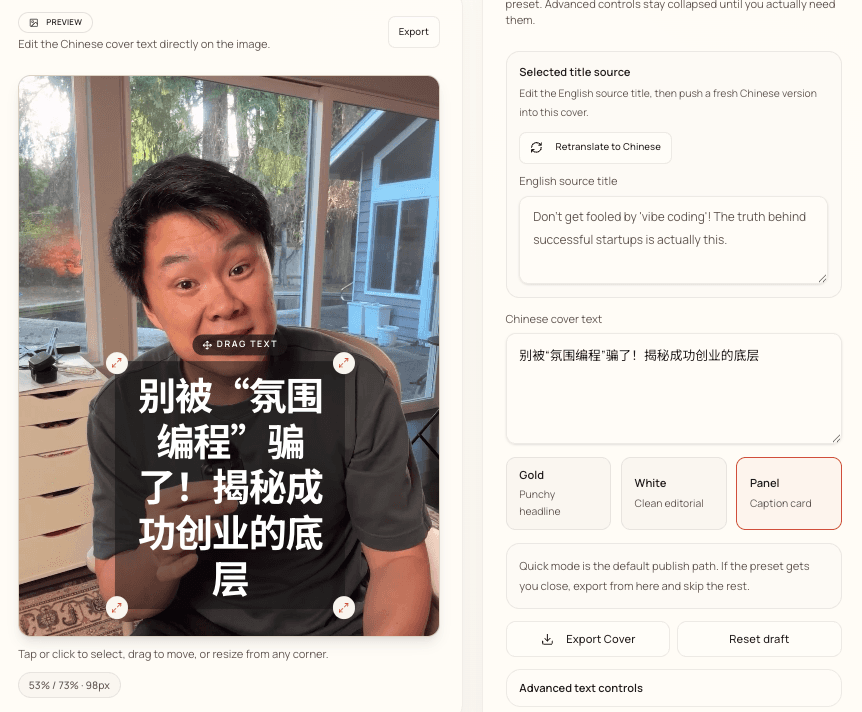
Start by checking the English source title. If it reads well, the Chinese cover text will be solid too. If you want to change it, retype the English title and hit "Retranslate to Chinese" to update the Chinese text on the cover.
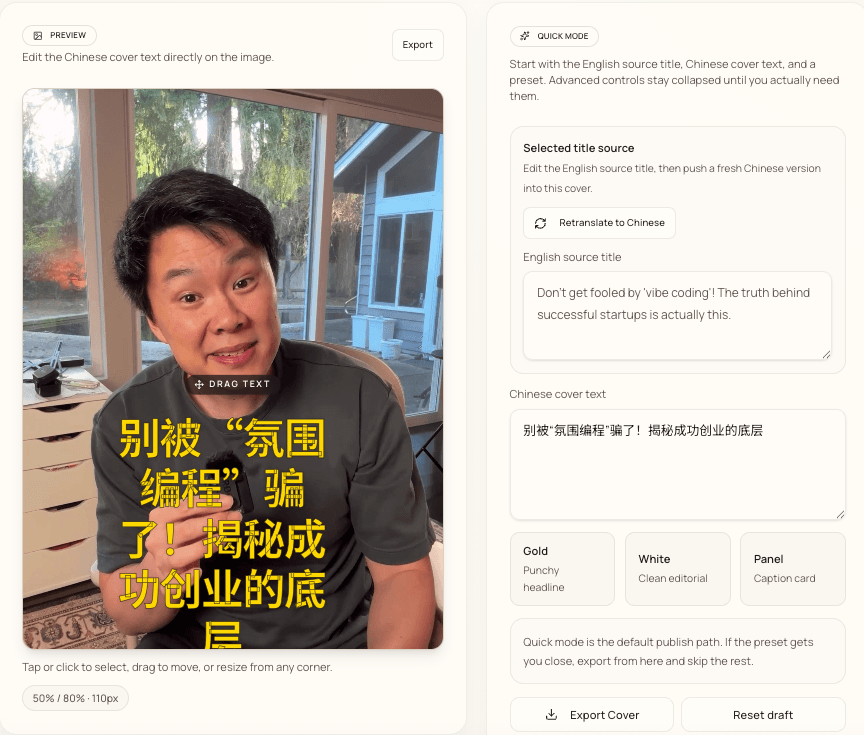
I typically pick the "Panel" caption card option. It creates a semi-transparent bar behind the text that gives you better contrast against the background image, so the Chinese characters are easy to read regardless of what's happening in the frame.
Scroll down to pick your candidate frame. Create In Chinese takes 9 screenshots from different moments in your video so you can choose the best one for the cover.
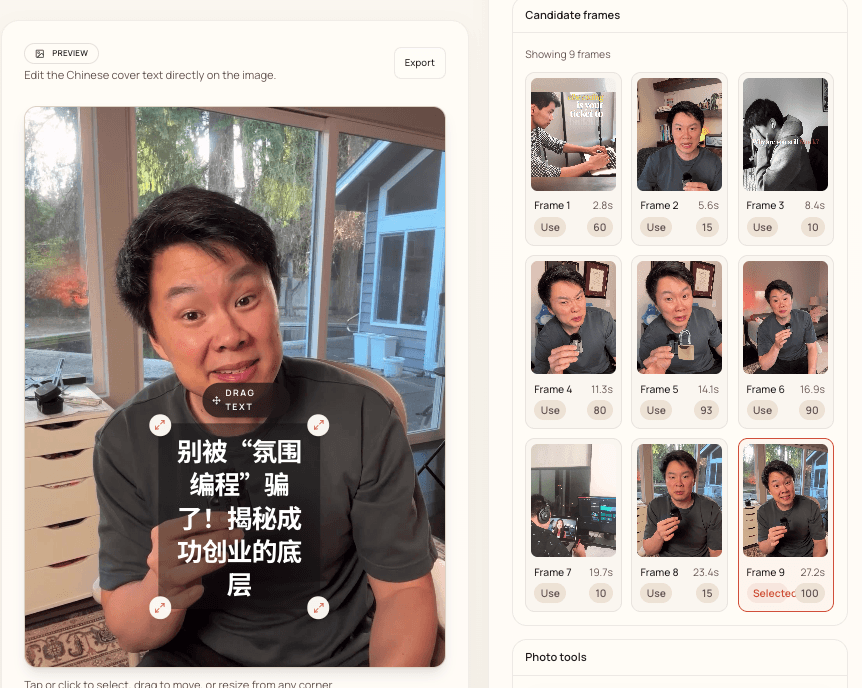
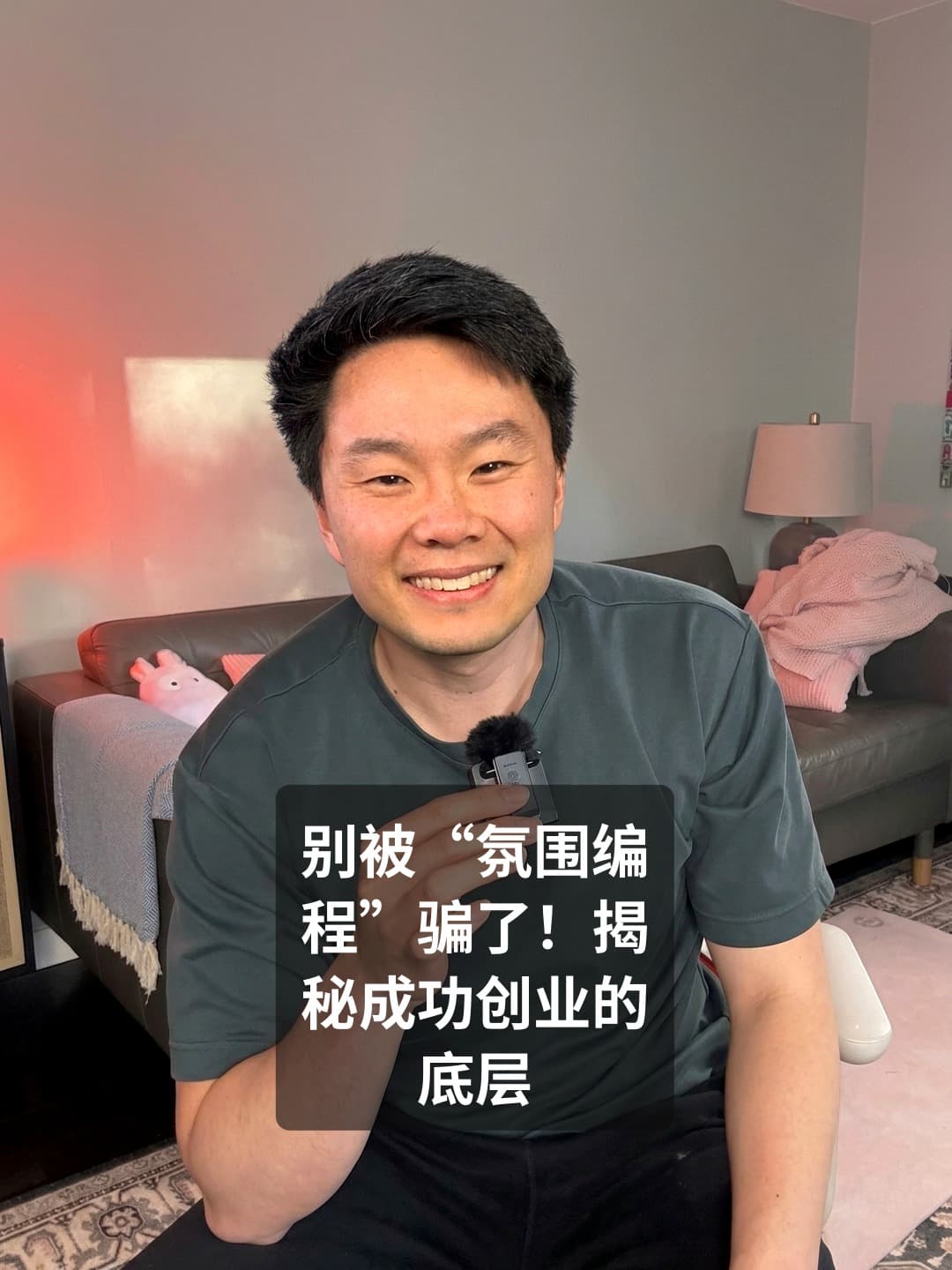
Sometimes the frame captures a weird mid-sentence expression. For that, there's an "Improve with Headshot" AI feature. It takes the original frame, overlays a clean headshot of you, and rebuilds the cover with a better expression while keeping the outfit, scene, and framing intact.
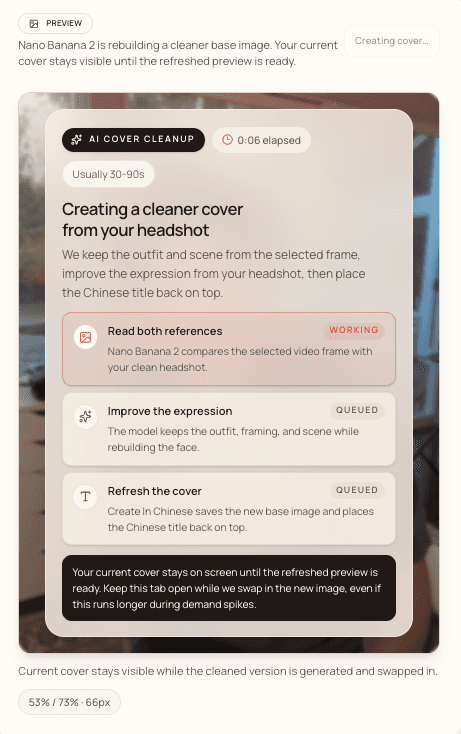
A few tips for getting the most out of this feature: have 2-3 headshots ready to test. Use them on frames where you're facing the camera, since the overlay works best with a straight-on angle. And make sure your headshot has a clean background without props or clutter, because anything behind you can bleed into the final image.
Step 3: Post to RedNote
Once you're happy with everything, export your cover image and download the subtitled video. For the caption, hit "Copy all" to grab the full bilingual text.
Then open the Xiaohongshu desktop app, upload your subtitled video, add the exported cover image, and paste in the caption. That's it.
The whole process from upload to posting takes about 5 minutes per video. If you have a backlog of 20 videos you want to repurpose for RedNote, you could realistically process all of them in a single afternoon.
Free vs. paid
Create In Chinese gives you one free preview video. No credit card required. Upload it and watch the result in the app — Chinese subtitles, cover, and bilingual captions — to see if the quality meets your bar.
Downloads come with Pro, which also covers 30 videos a month. The pricing is on the site.
The preview isn't a crippled version. It runs the exact same transcription, translation, cover editor, and subtitle rendering, so what you see is what Pro downloads.
Try it with one of your videos. Pick something short that performed well on another platform. Upload it at createinchinese.com and see the whole flow in about five minutes. Your first three videos are free.